

Your Client Portal is one of the most valuable tools available to you as a BayRock Financial client.
It provides secure, 24/7 access to your investment accounts, performance reports, important documents, and financial planning resources—all from one convenient location.
Whether you’re reviewing your portfolio before a meeting, downloading a quarterly report, or checking account activity, your Client Portal is designed to give you a clear view of your financial life.
Why Your Client Portal Matters
Many clients only log in when they receive a quarterly report or prepare for a review meeting. However, the portal can serve as your personal financial dashboard throughout the year.
Inside your portal, you can:
-
View account balances
-
Monitor investment performance
-
Review transactions
-
Access quarterly reports
-
Download custodian documents
-
Track financial planning tasks
-
Access information from your computer, tablet, or smartphone
The more familiar you become with the portal, the more valuable it becomes.
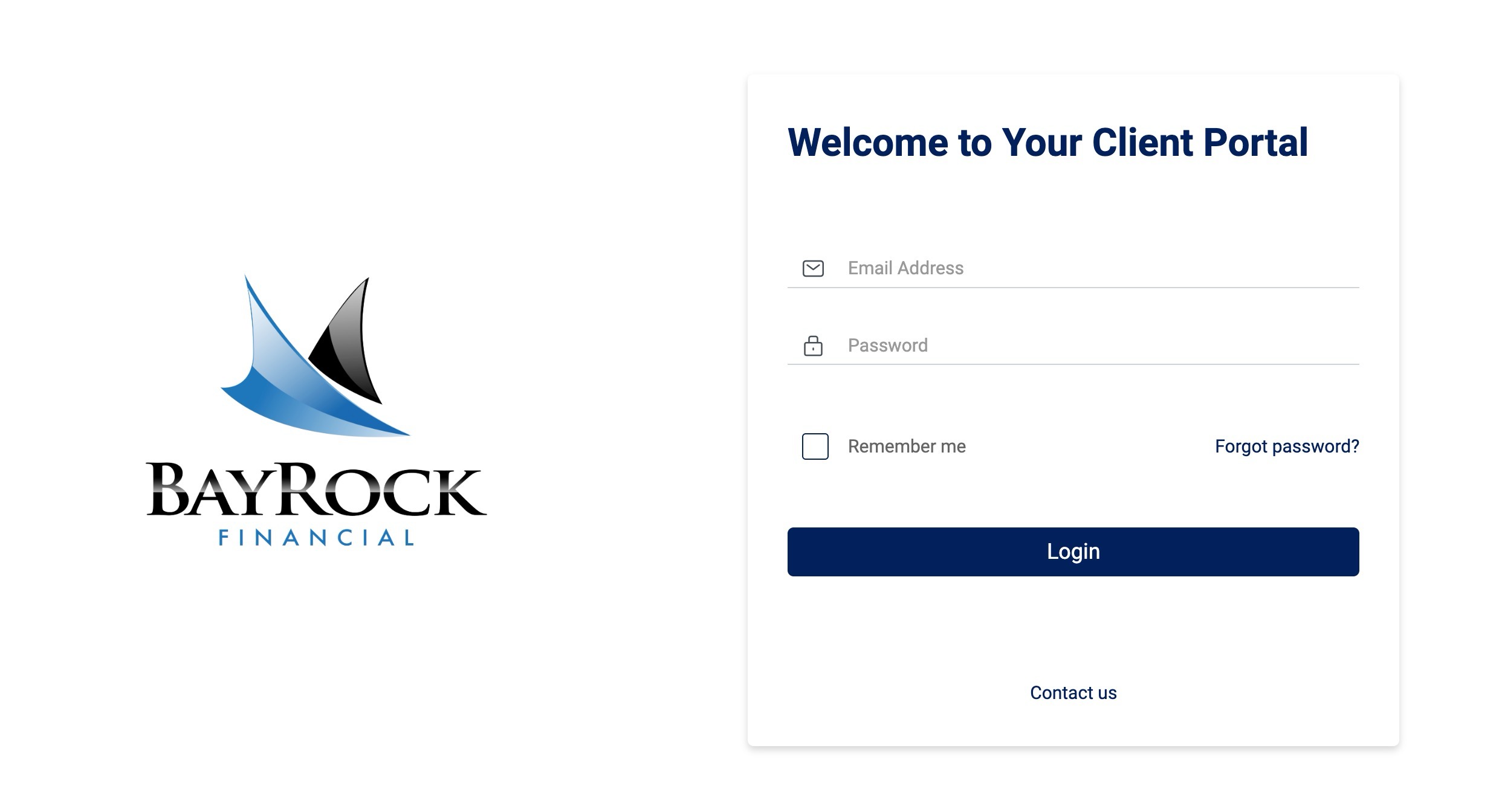
Step 1:
Getting started is simple.
-
Enter your email address.
-
Enter your password.
-
Check the Remember Me box if you’re using a trusted device.
-
Click Login.
Forgot Your Password?
If you cannot remember your password, simply click Forgot Password and follow the instructions sent to your email address.
Pro Tip
Bookmark the portal login page in your browser so you can easily access it in the future.
Step 2: Explore the Home Dashboard
Once you’ve logged in, you’ll arrive at the Home Dashboard.
This dashboard provides a high-level overview of your household financial information and serves as the central hub for your portal experience.
The three sections you’ll use most often are:
-
Home
-
Accounts
-
Documents
Most clients spend the majority of their time in these three areas.
Net Worth Snapshot
The Home Dashboard provides a quick summary of:
-
Net Worth
-
Assets
-
Liabilities
This gives you an at-a-glance view of your overall financial picture.
To-Do Lists and Planning Tasks
If we’re working together on financial planning projects, you may also see action items, reminders, or planning tasks within your dashboard.
Step 3: Review Your Accounts
The Accounts section provides detailed information about each investment account.
Here you can:
-
View account balances
-
Review holdings
-
Monitor investment activity
-
Access account-specific reporting
Simply select an account from the account list to view more detailed information.
Step 4: Track Investment Performance
One of the most frequently visited sections of the portal is the Performance Overview.
This section allows you to review:
-
Current performance
-
Year-to-date returns
-
One-year returns
-
Longer-term performance history
Remember that successful investing is a long-term process. While short-term performance may fluctuate, reviewing results within the context of your overall financial plan is often more meaningful than focusing on day-to-day market movements.
Step 5: Review Account Activity
The Transaction Summary section allows you to review activity within your accounts.
Examples include:
-
Investment purchases
-
Investment sales
-
Dividends
-
Interest payments
-
Deposits
-
Withdrawals
You can also:
-
Filter by date range
-
Export reports to PDF
-
Export information to Excel
This area is especially useful if you’d like to review recent activity or verify specific transactions.
Step 6: Review Projected Cash Flow
For many clients, especially retirees or those approaching retirement, projected income is an important planning consideration.
The Projected Cash Flow section provides estimates of future income generated by your investments.
This may include:
-
Dividend income
-
Bond interest
-
Money market income
-
Other projected cash flows
This information can help support retirement income planning and cash flow discussions during review meetings.
Step 7: Access Documents and Reports
The Documents section serves as your secure document vault.
Shared Files
This area contains documents uploaded by BayRock Financial, including:
-
Quarterly performance reports
-
Financial planning documents
-
Meeting materials
-
Client resources
Custodian Documents
This area may contain documents provided directly by Charles Schwab, including:
-
Account statements
-
Tax forms
-
Trade confirmations
-
Other account records
We encourage clients to become familiar with this section, as many important documents are stored here for easy access.
Step 8: Access Your Information on the Go
Your Client Portal is also available through the Advyzon mobile application.
To get started:
-
Visit the Apple App Store or Google Play Store.
-
Search for Advyzon.
-
Download the application.
-
Log in using the same credentials you use for your Client Portal.
This allows you to access your financial information wherever you are.
Getting the Most From Your Portal
Before each review meeting, we recommend that you:
-
Log into your portal.
-
Review recent reports.
-
Check performance updates.
-
Review uploaded documents.
-
Make note of questions you’d like to discuss.
Taking a few minutes to review your information beforehand often leads to more productive and meaningful conversations.
Need Assistance?
If you have questions about:
-
Logging in
-
Password resets
-
Reports
-
Documents
-
Performance information
-
Account access
Please contact [email protected]
Continue Exploring
➡️ Client Resources
➡️ Understanding Your Quarterly Performance Report
➡️ Preparing for Your Review Meeting
➡️ Understanding Your Schwab Statement
➡️ Understanding Investment Performance